
QuickBooks Online Construction Integration
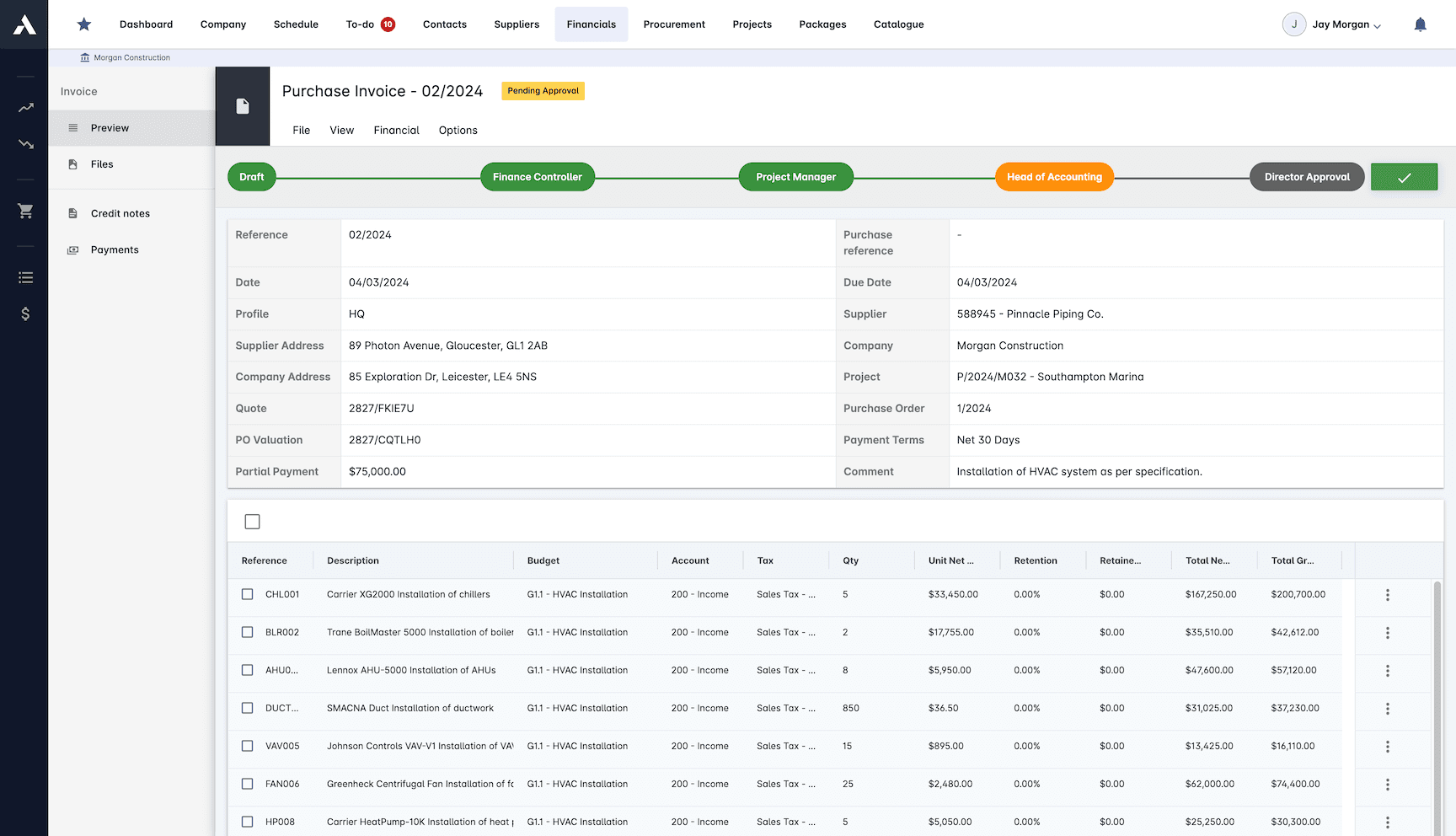
Projects in Archdesk. The books in QuickBooks Online. No re-keying between them.Invoices, credit notes and contacts flow from Archdesk into QuickBooks Online project-coded, and payments flow back from the bank feed. Finance keeps the ledger it trusts, and the project team sees costs and cash that match it.
Trusted by construction companies of every size, worldwide




















Construction costs and the ledger, agreeing for once
QuickBooks Online keeps the books for a huge share of contractors, but it does not know what a change order, a progress draw or a cost code is. Archdesk runs the project side, QuickBooks Online keeps the accounts, and the integration keeps the two in step: financial documents stop being typed twice, and every transaction lands coded to the project it belongs to.

The ledger stays where finance wants it
No accounting migration. The integration connects Archdesk to QuickBooks Online so each side keeps doing what it is good at.
Project-coded, both sides
Cost codes map to your chart of accounts once, and invoices, credit notes and expenses land against the right project and account from then on.
Cashflow visibility built in
QuickBooks Online connects to your bank account, and payments landing there appear in Archdesk automatically, feeding cashflow reporting and the WIP reporting position.
A construction layer QuickBooks lacks
Estimates, progress draws, change orders, subcontractor accounts and holdback live in Archdesk, connected to the ledger instead of floating in spreadsheets.
Set up with our team
The connection is scoped in discovery and configured during implementation, agreed with your finance team and tested against real transactions before anyone relies on it.

What the QuickBooks Online integration covers
The integration focuses on the financial documents that connect projects to the ledger: documents flow from Archdesk into QuickBooks Online, and payments flow back through the bank feed.
| Entity | Direction | Notes |
|---|---|---|
| General ledger / nominal codes | QuickBooks Online to Archdesk (one-off, typical) | The nominal code structure is typically synced once at setup, so cost coding in Archdesk maps to the QuickBooks Online chart of accounts and every document posts against the right codes. |
| Vendors / suppliers | Archdesk to QuickBooks Online | Supplier records created in Archdesk land in QuickBooks Online, so purchase documents post against the right contact. |
| Clients / customers | Archdesk to QuickBooks Online | Client records flow into QuickBooks Online, so sales invoices post without re-keying contact details. |
| Sales invoices | Archdesk to QuickBooks Online | Invoices raised against clients in Archdesk reach the QuickBooks Online ledger project-coded, without being typed twice. |
| Purchase invoices | Archdesk to QuickBooks Online | Costs captured against projects in Archdesk land in QuickBooks Online coded to the job they belong to. |
| Credit notes | Archdesk to QuickBooks Online | Corrections travel with the invoices they adjust, on both the sales and the purchase side. |
| Payments | QuickBooks Online to Archdesk | QuickBooks Online connects to your bank account, so payments landing on the account automatically appear in Archdesk against the right invoices, feeding cashflow visibility and the WIP reporting position. |
Configured during implementation, agreed with finance
The Archdesk implementation team scopes the QuickBooks Online connection in discovery: which entities are in scope, how cost codes map to the chart of accounts, and how finance wants corrections handled. The integration is configured and tested during onboarding, so the first month-end after go-live is a check, not a reconciliation project.
For the wider picture, see accounting and ERP integration and construction job costing.
Frequently Asked Questions: QuickBooks Online Integration
Does Archdesk integrate with QuickBooks Online?
Yes. Vendors, clients, sales and purchase invoices and credit notes flow from Archdesk into QuickBooks Online, coded to the project they belong to. Payments flow the other way: QuickBooks Online connects to your bank account, so payments landing on the account automatically appear in Archdesk against the right invoices.
Does the integration work with QuickBooks Desktop?
The integration is built for QuickBooks Online. If you run a desktop edition, talk to our team about your setup and the options for connecting your ledger.
How do transactions stay matched to projects?
Cost codes are mapped to your chart of accounts during implementation, so invoices, credit notes and expenses land coded to the right project and account on the ledger side.
Who sets the integration up?
The Archdesk implementation team scopes the connection in discovery and configures it as part of onboarding, agreed with your finance team and tested against real transactions.
What does the integration change for the project team?
The cost position in Archdesk reflects the ledger without a month-end export, and because payments arrive from QuickBooks Online automatically via the bank feed, cashflow reporting and the WIP reporting position build from live figures.
More Archdesk integrations
Every integration connects to the same project data model, so whichever systems your business runs on, the numbers agree. These pages cover the most requested systems, not the full list: Archdesk regularly builds integrations with customers' own ERP and accounting platforms during implementation.
Xero
Certified partner integration, listed on the Xero App Store.
Learn More
Sage 50
Export invoices, credit notes and costs to Sage 50, project-coded.
Learn More
Microsoft Dynamics
Set up with our team, mapped to your Dynamics environment.
Learn More
SAP
Interface experience across older SAP landscapes and S/4HANA.
Learn More
MS Project
Import and export schedules, both ways.
Learn More
Primavera P6
Two-way schedule exchange, including calendars and baselines.
Learn MoreSee the full picture on the integrations overview or dive into accounting and ERP integration.
See your next project on Archdesk
Book a demo and walk through a fully worked example project: one platform running everything from winning the work to closing it out.
Book a Demo